
Where Are Downloaded Songs on Android? Finding, Moving & Music Player Sync
Can't locate your downloaded songs on Android 13 or 14? Learn how to find files in Samsung My Files or Files by Google, move them to the Music directory, and fix the .nomedia indexing bug.
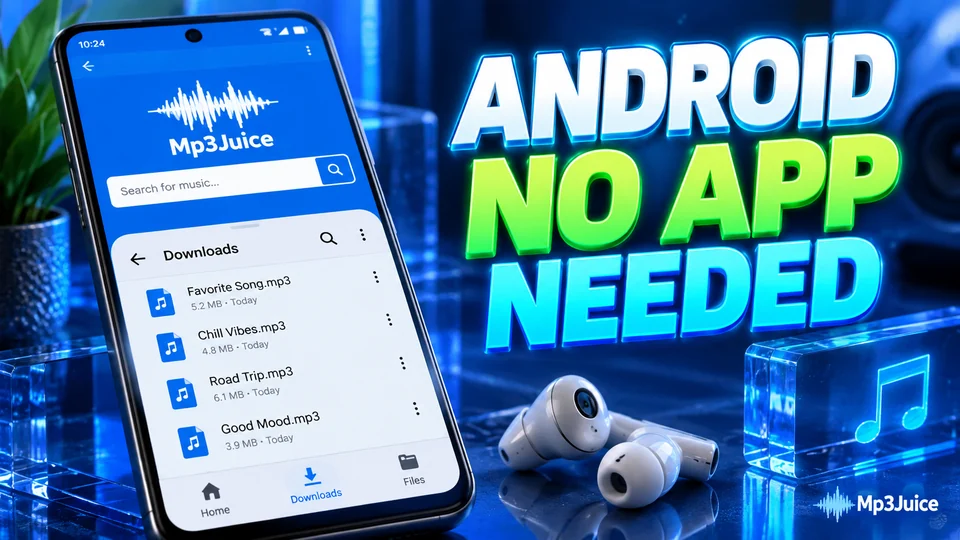
Why Downloaded MP3s Don't Always Show in Music Apps
With modern Android versions (Android 11 through Android 15), Google introduced Scoped Storage to improve privacy. While this prevents rogue apps from snooping through your personal documents, it also means third-party music player apps can no longer automatically scan your entire phone without explicit permission.
As a result, when you download an audio track using Chrome or MP3Juice, the file lands in your internal storage, but third-party music player apps might not display it immediately.
How to Find Your Songs on Any Android Phone
- On Samsung Galaxy phones: Open the My Files app > tap Categories: Audio or go to Internal Storage > Download.
- On Google Pixel, Motorola, OnePlus, or Xiaomi: Open the Files by Google app > tap the Downloads category or tap Audio.
- Your latest downloads will be sorted by date right at the top.
The Golden Fix: Move Songs to the Dedicated "Music" Folder
Android's background MediaScanner service gives top indexing priority to the official system Music folder. Moving your songs from Download to Music solves 95% of missing song issues:
- Open your file manager (My Files or Files by Google).
- Go into the Download folder, long-press the MP3 songs, and tap Move (or Cut).
- Navigate back to Internal Storage and open the Music folder.
- Tap Move here.
Fixing the Notorious ".nomedia" Bug
A .nomedia file is a tiny hidden system file that tells Android: "Do not scan any images or music in this folder for the gallery or media players."
Sometimes, download managers or apps mistakenly place a .nomedia file inside the Download directory, which hides all your songs from music apps!
- In your file manager app, open Settings and toggle on "Show hidden system files".
- Open your Download and Music folders.
- Look for any file named exactly
.nomedia. - Delete it! Within 30 seconds, Android's system indexer will rescan the folder and your songs will immediately appear in all music apps.